Showing posts with label JTextField. Show all posts

Thursday, May 10, 2012

Transparent JTextField | The Simple and Basic way to do it

Program Description:

Today I have created a very simple Java Program on how to create a transparent JTextField. This is just a basic way on how to create a 100% transparent JTextField which means you won't see anything but can type a text or an input. Even if you change the background color still you won't see anything because it is totally transparent. To know how, see the code below and the sample screenshots.

Output:


Code:

/**
* File: simpleTransparentJTF.java
* Tiltle: Transparent JTextField | The Simple and Basic way to do it.
* Author: http://java-code-complete.blogspot.com/
*/

//Java Core Package
import javax.swing.*;
//Java Extension Package
import java.awt.*;

public class simpleTransparentJTF extends JFrame {

//Constructing JTextField
JTextField field = new JTextField("Type your Text Here...",20);

//Initiazlizing the class Font to set our JTextField text style
Font defualtFont;

//Setting up GUI
public simpleTransparentJTF() {

//Setting up the Title of the Window
super("Transparent JTextField");

//Set Size of the Window (WIDTH, HEIGHT)
setSize(370,85);

//Exit Property of the Window
setDefaultCloseOperation(JFrame.EXIT_ON_CLOSE);

//Constructing class Font property
defualtFont = new Font("Arial", Font.BOLD, 18);

//Setting JTextField Properties
field.setFont(defualtFont);
field.setPreferredSize(new Dimension(150,40));
field.setForeground(Color.BLACK);

//Step 1: Remove the border line to make it look like a flat surface.
field.setBorder(BorderFactory.createLineBorder(Color.white, 0));

//Step 2: Set the background color to null to remove the background.
field.setBackground(null);

//Setting up the container ready for the components to be added.
Container pane = getContentPane();
setContentPane(pane);

//Change the background color of the container to see
//if the JTextField is really transparent.
pane.setBackground(Color.YELLOW);

//Adding JTextField to our container
pane.add(field);

//Setting up the container layout
FlowLayout flow = new FlowLayout(FlowLayout.CENTER);
pane.setLayout(flow);

/**Set all the Components Visible.
* If it is set to "false", the components in the container will not be visible.
*/
setVisible(true);

//Disable Frame Size
setResizable(false);
}

//Main Method
public static void main (String[] args) {
simpleTransparentJTF pjtf = new simpleTransparentJTF();
}
}

To test if it is really transparent, you can change the background color of the window by just changing the color if this line below:

//Change the background color of the container to see
//if the JTextField is really transparent.
pane.setBackground(Color.YELLOW);

Important Part of the Program:

//Step 1: Remove the border line to make it look like a flat surface.
field.setBorder(BorderFactory.createLineBorder(Color.white, 0));

//Step 2: Set the background color to null to remove the background.
field.setBackground(null);

Note: This techniques won't give you a very nice output if you are going to put a graphic image at the back of the JTextField because it will just ignore the image. Do not use images as background of your window if you are going to use this technique. You can use different background colors using the class Color.

If you have any questions or comments about the program, feel free to post it here.

Wednesday, May 9, 2012

Resizing or Changing JTextField Size using simple Java Code

Program Description:

This program is just a simple java code to illustrate on how to re-size the JTextField in a simple way using simple code. Similar to JPanel, the way on how to change JTextField size is through the method setPreferredSize(); and the class Dimension.

Output:
Code:

/**
* File: resizeJTextField.java
* Tiltle: Simple way in Resizing JTextField
* Author: http://java-code-complete.blogspot.com/
*/

//Java Core Package
import javax.swing.*;
//Java Extension Package
import java.awt.*;

public class resizeJTextField extends JFrame {

//Constructing JTextFields
JTextField size1 = new JTextField("RESIZING JTEXTFIELD");
JTextField size2 = new JTextField("RESIZING JTEXTFIELD");
JTextField size3 = new JTextField("RESIZING JTEXTFIELD");
JTextField size4 = new JTextField("RESIZING JTEXTFIELD");

//Setting up GUI
public resizeJTextField() {

//Setting up the Title of the Window
super("Simple way in Resizing JTextField");

//Set Size of the Window (WIDTH, HEIGHT)
setSize(500,435);

//Exit Property of the Window
setDefaultCloseOperation(JFrame.EXIT_ON_CLOSE);

//Setting up the container ready for the components to be added.
Container pane = getContentPane();
setContentPane(pane);

//Setting up the layout of the container
pane.setLayout(new FlowLayout(FlowLayout.CENTER));

//Setting the JTextField text to center
size1.setHorizontalAlignment(SwingConstants.CENTER);
size2.setHorizontalAlignment(SwingConstants.CENTER);
size3.setHorizontalAlignment(SwingConstants.CENTER);
size4.setHorizontalAlignment(SwingConstants.CENTER);

//Spicify the size of the JTextField using the method setPreferredSize() and the class Dimension
size1.setPreferredSize(new Dimension(450,150));
size2.setPreferredSize(new Dimension(450,100));
size3.setPreferredSize(new Dimension(450,75));
size4.setPreferredSize(new Dimension(450,50));

//add the JTextFields in the container
pane.add(size1);
pane.add(size2);
pane.add(size3);
pane.add(size4);

/**Set all the Components Visible.
* If it is set to "false", the components in the container will not be visible.
*/
setVisible(true);
}

//Main Method
public static void main (String[] args) {
resizeJTextField pjtf = new resizeJTextField();
}
}

Important Part of the Program:

//Spicify the size of the JTextField using the method setPreferredSize() and the class Dimension
size1.setPreferredSize(new Dimension(450,150));
size2.setPreferredSize(new Dimension(450,100));
size3.setPreferredSize(new Dimension(450,75));
size4.setPreferredSize(new Dimension(450,50));

Monday, April 23, 2012

How to put a JTextField, JLabel, and JButton above image

Program Description:

This Java program demonstrates on how to add JComponents above an image. The technique is simple, it is just a JPanel inside another JPanel.

We created a class called "backgroundClass" which extends to JPanel so that means our class "backgroundClass" is a JPanel. In our main JPanel the class "backgroundClass", we set there our background image then inside our main JPanel we added two JPanels which holds the JLabel, JTextField, and JButton.

By setting the background color of our JPanel 1 to transparent, we can see in the output that it is like the label, the buttons, and the textfields are actually placed above the image but it is not, instead it is a layer of panels, a JPanel placed inside another JPanel.

Output:
Code:

Main Program

/**
* File: interfaceAndImage.java
* Tiltle: How to put a JTextField, JLabel, and JButton above image
* Author: http://java-code-complete.blogspot.com/
*/

//Java Core Package
import javax.swing.*;
//Java Extension Package
import java.awt.*;

public class interfaceAndImage extends JFrame {

//Constructing the class we created called "backgroundClass" so we can
//use it here in our main program as a parent panel.
backgroundClass bc;

//Initializing our JComponents and the labels of our JButton and JLabel
JPanel panel1, panel2;
JLabel labels[];
JButton choices[];
JTextField inputs[];
String lebelName[] = {"Name:","Age:","Sex:","Address:","Tel. No.:"};
String buttonChoice[] = {"Register","Reset","Cancel"};

//Setting up GUI
public interfaceAndImage() {

//Setting up the Title of the Window
super("How to put a JTextField, JLabel, and JButton above image");

//Set Size of the Window (WIDTH, HEIGHT)
setSize(310,170);

//Exit Property of the Window
setDefaultCloseOperation(JFrame.EXIT_ON_CLOSE);

//Constructing the class "backgroundClass" and call the keyword "this" so it can
//be recognizable by our main program.
bc = new backgroundClass(this);

//Constructing JPanel 1 and set its layout property including the background property
//which is transparent
panel1 = new JPanel();
panel1.setLayout(new GridLayout(5,2));

//Constructing the class Color and set its property to 0,0,0,0 means no color.
Color trans = new Color(0,0,0,0);
panel1.setBackground(trans); //Setting JPanel 1 background to transparent


//Constructing JPanel 2 and set its layout property
panel2 = new JPanel();
panel2.setLayout(new GridLayout());

//Constructing our JComponents setting its specific array size
labels = new JLabel[5];
inputs = new JTextField[5];
choices = new JButton[3];

//Adding our JPanel 1 and 2 to our class "backgroundClass" which is our parent panel
bc.add(panel1, BorderLayout.NORTH);
bc.add(panel2, BorderLayout.SOUTH);

//Setting up the container ready for the components to be added.
Container pane = getContentPane();
setContentPane(pane);

//Constructing JLabel and JTextField using "for loop" in their desired order
for(int count=0; count<inputs.length && count<labels.length; count++) {
labels[count] = new JLabel(lebelName[count], JLabel.RIGHT);
inputs[count] = new JTextField(30);

//Adding the JLabel and the JTextFied in JPanel 1
panel1.add(labels[count]);
panel1.add(inputs[count]);
}

//Constructing all 4 JButtons using "for loop" and add them in the panel 1
for(int count=0; count<choices.length; count++) {
choices[count] = new JButton(buttonChoice[count]);
panel2.add(choices[count]);
}

//Adding the class "backgroundClass" to our container as parent panel
pane.add(bc);

/**Set all the Components Visible.
* If it is set to "false", the components in the container will not be visible.
*/
setVisible(true);

//Disable window size
setResizable(false);
}

//Main Method
public static void main (String[] args) {
interfaceAndImage iai = new interfaceAndImage();
}
}

Main JPanel (class "backgroundClass")

This is our main JPanel which holds our background image. This is where we also place our JButtons, JLabel, JTextField, and another JPanel by calling this class to our main Program.

/**
* File: backgroundClass.java
* Tiltle: Adding Image Above Another Image (class extention)
* Author: http://java-code-complete.blogspot.com/
*/

//Java Core Package
import javax.swing.*;
//Java Extension Package
import java.awt.*;

public class backgroundClass extends JPanel {

//Initializing the class Image
Image background;

//Setting up GUI
public backgroundClass(interfaceAndImage iai) {

//Constructing the class "Toolkit" which will be used to manipulate our images.
Toolkit kit = Toolkit.getDefaultToolkit();

//Getting the "background.jpg" image we have in the folder
background = kit.getImage("background.jpg");
}

//Manipulate Images with JAVA2D API. . creating a paintComponent method.
public void paintComponent(Graphics comp) {

//Constructing the class Graphics2D. Create 2D by casting the "comp" to Graphics2D
Graphics2D comp2D = (Graphics2D)comp;

//creating a graphics2d using the images in the folder and place it in a specific coordinates.
comp2D.drawImage(background, 0, 0, this);
}
}

Sunday, October 9, 2011

Scan Database using First, Last, Next, and Previous Function

Program Description:

The Java Program below is a simple code on how to use the function First, Last, Next, and Previous in scanning data from MS Access Database. I made this program as simple and as short as possible in order to understand easily. It has been tested several times to make sure it runs perfectly. You can download the whole program below including the database to test properly:

Download: scanDatabase.rar

Output:
Code:

/**
* File: scanDatabase.java
* Tiltle: Scan Database Using First, Last, Next, Previous
* Author: http://java-code-complete.blogspot.com/
*/

//Java Core Package
import javax.swing.*;
//Java Extension Package
import java.awt.*;
import java.awt.event.*;
import java.sql.*;

public class scanDatabase extends JFrame {

//Initializing Program Components
private JTextField inputs[];
private JButton scan[];
private String butLabel[] = {"First","Last","Next","Prev"};
private JLabel labels[];
private String fldLabel[] = {"ID","First Name: ","Middle Name: ","Family Name: ","Age: "};
private JPanel p1,p2;

Connection con;
Statement st;
ResultSet rs;
String db;

//Setting up GUI
public scanDatabase() {

//Setting up the Title of the Window
super("Scan Database");

//Set Size of the Window (WIDTH, HEIGHT)
setSize(305,160);

//Exit Property of the Window
setDefaultCloseOperation(JFrame.EXIT_ON_CLOSE);

//Constructing Program Components
inputs = new JTextField[5];
labels = new JLabel[5];
scan = new JButton[4];
p1 = new JPanel();
p1.setLayout(new GridLayout(5,2));
p2 = new JPanel();
p2.setLayout(new GridLayout(1,1));

//Setting up the container ready for the components to be added.
Container pane = getContentPane();
setContentPane(pane);

//Creating a connection to MS Access and fetching errors using "try-catch" to check if it is successfully connected or not.
try {
Class.forName("sun.jdbc.odbc.JdbcOdbcDriver");
db = "jdbc:odbc:Driver={Microsoft Access Driver (*.mdb)};DBQ=addItemDB.mdb;";
con = DriverManager.getConnection(db,"","");
st = con.createStatement(ResultSet.TYPE_SCROLL_INSENSITIVE,ResultSet.CONCUR_READ_ONLY);

rs=st.executeQuery("select * from person");
rs.first();

JOptionPane.showMessageDialog(null,"Successfully Connected to Database","Confirmation", JOptionPane.INFORMATION_MESSAGE);

} catch (Exception e) {
JOptionPane.showMessageDialog(null,"Failed to Connect to Database","Error Connection", JOptionPane.ERROR_MESSAGE);
System.exit(0);
}

//Constructing JLabel and JTextField using "for loop" in their desired order
for(int count=0; count<inputs.length && count<labels.length; count++) {
labels[count] = new JLabel(fldLabel[count]);
inputs[count] = new JTextField(30);
//Adding the JLabel and the JTextFied in JPanel 1
p1.add(labels[count]);
p1.add(inputs[count]);
}

//Constructing JButton using "for loop"
for(int count=0; count<scan.length; count++) {
scan[count] = new JButton(butLabel[count]);
//Adding the JButton in JPanel 2
p2.add(scan[count]);
}

//Implemeting Even-Listener on JButton first
scan[0].addActionListener(
new ActionListener() {

//Handle JButton event if it is clicked
public void actionPerformed(ActionEvent event) {
try {

rs=st.executeQuery("select * from person");
if (rs.first())
displayRes();

}catch (Exception e ) {
System.out.println("Fail to Connect to the Database");
}
}
}
);

//Implemeting Even-Listener on JButton last
scan[1].addActionListener(
new ActionListener() {

//Handle JButton event if it is clicked
public void actionPerformed(ActionEvent event) {
try {

rs=st.executeQuery("select * from person");
if (rs.last())
displayRes();

}catch (Exception e ) {
System.out.println("Fail to Connect to the Database");
}
}
}
);

//Implemeting Even-Listener on JButton next
scan[2].addActionListener(
new ActionListener() {

//Handle JButton event if it is clicked
public void actionPerformed(ActionEvent event) {
try {

if(rs!=null || (!rs.next()))
rs.next();
displayRes();

}catch (Exception e ) {
System.out.println("You have reached the last Data.");
}
}
}
);

//Implemeting Even-Listener on JButton last
scan[3].addActionListener(
new ActionListener() {

//Handle JButton event if it is clicked
public void actionPerformed(ActionEvent event) {
try {

if(rs!=null)
rs.previous();
displayRes();

}catch (Exception e ) {
System.out.println("You have reached the first Data.");
}
}
}
);

//Adding JPanel 1 and 2 to the container
pane.add(p1, BorderLayout.NORTH);
pane.add(p2, BorderLayout.SOUTH);

/**Set all the Components Visible.
* If it is set to "false", the components in the container will not be visible.
*/
setVisible(true);
setResizable(false);
}

//Creating a method used to retrieve data from database and display in JTextField
public void displayRes() throws Exception {
inputs[0].setText(rs.getString(1));
inputs[1].setText(rs.getString(2));
inputs[2].setText(rs.getString(3));
inputs[3].setText(rs.getString(4));
inputs[4].setText(rs.getString(5));
}

//Main Method
public static void main (String[] args) {
scanDatabase sd = new scanDatabase();
}
}

Important Part of the Program:

//Implemeting Even-Listener on JButton first
scan[0].addActionListener(
new ActionListener() {

//Handle JButton event if it is clicked
public void actionPerformed(ActionEvent event) {
try {

rs=st.executeQuery("select * from person");
if (rs.first())
displayRes();

}catch (Exception e ) {
System.out.println("Fail to Connect to the Database");
}
}
}
);

//Implemeting Even-Listener on JButton last
scan[1].addActionListener(
new ActionListener() {

//Handle JButton event if it is clicked
public void actionPerformed(ActionEvent event) {
try {

rs=st.executeQuery("select * from person");
if (rs.last())
displayRes();

}catch (Exception e ) {
System.out.println("Fail to Connect to the Database");
}
}
}
);

//Implemeting Even-Listener on JButton next
scan[2].addActionListener(
new ActionListener() {

//Handle JButton event if it is clicked
public void actionPerformed(ActionEvent event) {
try {

if(rs!=null || (!rs.next()))
rs.next();
displayRes();

}catch (Exception e ) {
System.out.println("You have reached the last Data.");
}
}
}
);

//Implemeting Even-Listener on JButton last
scan[3].addActionListener(
new ActionListener() {

//Handle JButton event if it is clicked
public void actionPerformed(ActionEvent event) {
try {

if(rs!=null)
rs.previous();
displayRes();

}catch (Exception e ) {
System.out.println("You have reached the first Data.");
}
}
}
);

Saturday, October 8, 2011

Adding Data to the Database using MS Access

Program Description:

The Program below is a very short, easy-to-understand java code that allows the user to add data to the database. The program is capable of detecting connection errors and input errors. You can download the whole program below including the database to properly test:

Download: addItemToDatabase.rar

Output:
Code:

/**
* File: addItemToDatabase.java
* Tiltle: Adding Data to the Database
* Author: http://java-code-complete.blogspot.com/
*/

//Java Core Package
import javax.swing.*;
//Java Extension Package
import java.awt.*;
import java.awt.event.*;
import java.sql.*;

public class addItemToDatabase extends JFrame {

//Initializing Components
private JTextField inputs[];
private JButton add, reset;
private JLabel labels[];
private String fldLabel[] = {"First Name: ","Middle Name: ","Family Name: ","Age: "};
private JPanel p1;

Connection con;
Statement st;
ResultSet rs;
String db;

//Setting up GUI
public addItemToDatabase() {

//Setting up the Title of the Window
super("Adding Data to the Database");

//Set Size of the Window (WIDTH, HEIGHT)
setSize(300,180);

//Exit Property of the Window
setDefaultCloseOperation(JFrame.EXIT_ON_CLOSE);

//Constructing Components
inputs = new JTextField[4];
labels = new JLabel[4];
add = new JButton("Add");
reset = new JButton("Reset");
p1 = new JPanel();

//Setting Layout on JPanel 1 with 5 rows and 2 column
p1.setLayout(new GridLayout(5,2));

//Setting up the container ready for the components to be added.
Container pane = getContentPane();
setContentPane(pane);

//Setting up the container layout
GridLayout grid = new GridLayout(1,1,0,0);
pane.setLayout(grid);

//Creating a connection to MS Access and fetching errors using "try-catch" to check if it is successfully connected or not.
try {
Class.forName("sun.jdbc.odbc.JdbcOdbcDriver");
db = "jdbc:odbc:Driver={Microsoft Access Driver (*.mdb)};DBQ=addItemDB.mdb;";
con = DriverManager.getConnection(db,"","");
st = con.createStatement();

JOptionPane.showMessageDialog(null,"Successfully Connected to Database","Confirmation", JOptionPane.INFORMATION_MESSAGE);

} catch (Exception e) {
JOptionPane.showMessageDialog(null,"Failed to Connect to Database","Error Connection", JOptionPane.ERROR_MESSAGE);
System.exit(0);
}

//Constructing JLabel and JTextField using "for loop" in their desired order
for(int count=0; count<inputs.length && count<labels.length; count++) {
labels[count] = new JLabel(fldLabel[count]);
inputs[count] = new JTextField(20);

//Adding the JLabel and the JTextFied in JPanel 1
p1.add(labels[count]);
p1.add(inputs[count]);
}

//Implemeting Even-Listener on JButton add
add.addActionListener(
new ActionListener() {

//Handle JButton event if it is clicked
public void actionPerformed(ActionEvent event) {

if (inputs[0].getText().equals("") || inputs[1].getText().equals("") || inputs[2].getText().equals("") || inputs[0].getText() == null || inputs[1].getText() == null || inputs[2].getText() == null)
JOptionPane.showMessageDialog(null,"Fill up all the Fields","Error Input", JOptionPane.ERROR_MESSAGE);

else

try {

String add = "insert into person (firstName,middleName,familyName,age) values ('"+inputs[0].getText()+"','"+inputs[1].getText()+"','"+inputs[2].getText()+"',"+inputs[3].getText()+")";
st.execute(add); //Execute the add sql

Integer.parseInt(inputs[3].getText()); //Convert JTextField Age in to INTEGER

JOptionPane.showMessageDialog(null,"Item Successfully Added","Confirmation", JOptionPane.INFORMATION_MESSAGE);

}catch (NumberFormatException e) {
JOptionPane.showMessageDialog(null,"Please enter an integer on the Field AGE","Error Input", JOptionPane.ERROR_MESSAGE);
}catch (Exception ei) {
JOptionPane.showMessageDialog(null,"Failure to Add Item. Please Enter a number on the Field AGE","Error Input", JOptionPane.ERROR_MESSAGE);
}
}
}
);

//Implemeting Even-Listener on JButton reset
reset.addActionListener(
new ActionListener() {

//Handle JButton event if it is clicked
public void actionPerformed(ActionEvent event) {
inputs[0].setText(null);
inputs[1].setText(null);
inputs[2].setText(null);
inputs[3].setText(null);
}
}
);

//Adding JButton "add" and "reset" to JPanel 1 after the JLabel and JTextField
p1.add(add);
p1.add(reset);

//Adding JPanel 1 to the container
pane.add(p1);

/**Set all the Components Visible.
* If it is set to "false", the components in the container will not be visible.
*/
setVisible(true);
}

//Main Method
public static void main (String[] args) {
addItemToDatabase aid = new addItemToDatabase();
}
}

Important Part of the Program:

//Implemeting Even-Listener on JButton add
add.addActionListener(
new ActionListener() {

//Handle JButton event if it is clicked
public void actionPerformed(ActionEvent event) {

if (inputs[0].getText().equals("") || inputs[1].getText().equals("") || inputs[2].getText().equals("") || inputs[0].getText() == null || inputs[1].getText() == null || inputs[2].getText() == null)
JOptionPane.showMessageDialog(null,"Fill up all the Fields","Error Input", JOptionPane.ERROR_MESSAGE);

else

try {

String add = "insert into person (firstName,middleName,familyName,age) values ('"+inputs[0].getText()+"','"+inputs[1].getText()+"','"+inputs[2].getText()+"',"+inputs[3].getText()+")";
st.execute(add); //Execute the add sql

Integer.parseInt(inputs[3].getText()); //Convert JTextField Age in to INTEGER

JOptionPane.showMessageDialog(null,"Item Successfully Added","Confirmation", JOptionPane.INFORMATION_MESSAGE);

}catch (NumberFormatException e) {
JOptionPane.showMessageDialog(null,"Please enter an integer on the Field AGE","Error Input", JOptionPane.ERROR_MESSAGE);
}catch (Exception ei) {
JOptionPane.showMessageDialog(null,"Failure to Add Item. Please Enter a number on the Field AGE","Error Input", JOptionPane.ERROR_MESSAGE);
}
}
}
);

Feel free to comment if the program doesn't work or if you have questions about the program. It has been tested many time so it runs perfectly.

Monday, September 26, 2011

Connect to MS Access Database

Program Description:

There are lots of versions of java codes out there demonstrating on how to connect java application to MS Access Database. Now I have created my own, simple, short, and easy to understand java code on how to connect to MS Access. What it does is that if you run the program, it will terminate if the connection to the database fails and if it succeeded a window will appear. To test the program if it is properly connected, just click the "Test Connection" button. The program will again terminate if the test connection fails and if it succeeded, a confirmation message will be stored in the database.

In order the program to work, you have to create a MS Access file with a filename "database", create a table name "Confirm" and in that table, create two fields name "confirm" and "confirm_to". You have to create the MS Access file in the folder where your java program is because of the code

db = "jdbc:odbc:Driver={Microsoft Access Driver (*.mdb)};DBQ=database.mdb;";

which means your program can easily access or connect to the database as long as they are in the same folder.

Output:
Code:

/**
* File: databaseCon.java
* Tiltle: Database Connection Using MS Access
* Author: http://java-code-complete.blogspot.com/
*/

//Java Core Package
import javax.swing.*;
//Java Extension Package
import java.awt.*;
import java.awt.event.*;
import java.sql.*;

public class databaseCon extends JFrame implements ActionListener {

//Initializing components
private JButton connect;
private JTextField confirmation;
Connection con;
Statement st;
ResultSet rs;
String db;

//Setting up GUI
public databaseCon() {

//Setting up the Title of the Window
super("MS Access Connection");

//Set Size of the Window (WIDTH, HEIGHT)
setSize(250,95);

//Exit Property of the Window
setDefaultCloseOperation(JFrame.EXIT_ON_CLOSE);

//Constructing Components
connect = new JButton("Test Connection");
confirmation = new JTextField(20);

//Setting up the container ready for the components to be added.
Container pane = getContentPane();
setContentPane(pane);

//Setting up the container layout
FlowLayout flow = new FlowLayout(FlowLayout.CENTER);
pane.setLayout(flow);

//Creating a connection to MS Access and fetching errors using "try-catch" to check if it is successfully connected or not.
try {
Class.forName("sun.jdbc.odbc.JdbcOdbcDriver");
db = "jdbc:odbc:Driver={Microsoft Access Driver (*.mdb)};DBQ=database.mdb;";
con = DriverManager.getConnection(db,"","");
st = con.createStatement();

confirmation.setText("Successfully Connected to Database");

} catch (Exception e) {
JOptionPane.showMessageDialog(null,"Failed to Connect to Database","Error Connection", JOptionPane.WARNING_MESSAGE);
System.exit(0);
}

//Adding Event Listener to the button "Connect"
connect.addActionListener(this);

//Adding components to the container
pane.add(confirmation);
pane.add(connect);

/**Set all the Components Visible.
* If it is set to "false", the components in the container will not be visible.
*/
setVisible(true);
}

//Creating an event to the JButton "Connect"
public void actionPerformed(ActionEvent event) {

try {
if(event.getSource() == connect ) {

//Adding values on the database field "confirm" and "confirm_to"
String insert = "insert into Confirm (confirm, confirm_to) values ('"+confirmation.getText()+"','"+confirmation.getText()+"')";
st.execute(insert); //Execute the sql

//This will display if the connection and the insertion of data to the database is successful.
confirmation.setText("Test Successful");

//Display what is in the database
rs=st.executeQuery("select * from Confirm");
while(rs.next()) {
System.out.println(rs.getString("confirm"));
}
}
}catch(Exception e) {
JOptionPane.showMessageDialog(null,"Failed to Connect to Database","Error Connection", JOptionPane.WARNING_MESSAGE);
System.exit(0);
}
}

//Main Method
public static void main (String[] args) {
databaseCon pjtf = new databaseCon();
}
}

Important Part of the Program:

//Creating a connection to MS Access and fetching errors using "try-catch" to check if it is successfully connected or not.
try {
Class.forName("sun.jdbc.odbc.JdbcOdbcDriver");
db = "jdbc:odbc:Driver={Microsoft Access Driver (*.mdb)};DBQ=database.mdb;";
con = DriverManager.getConnection(db,"","");
st = con.createStatement();

confirmation.setText("Successfully Connected to Database");

} catch (Exception e) {
JOptionPane.showMessageDialog(null,"Failed to Connect to Database","Error Connection", JOptionPane.WARNING_MESSAGE);
System.exit(0);
}

Thursday, August 18, 2011

Basic Arithmetic Operation using JRadioButton, JTextField, and JButton

Program Description:

The program below is a java code, a progject that demonstrates basic arithmetic operations using JTextField, JRadioButton, and JButton. This is a revised code from the blog PlaneCodes which I try to make the codes more understandable by putting comments and making it more organized.

The program can detect if there is no arithmetic operator selected. The program only accepts integer numbers and it will detect if the user puts double or float or string. The program can also recognize if the JTextFields are empty.

Output:
Code:

/**

* File: basicArithmeticOperation.java

* Tiltle: Basic Arithmetic Operation using JRadioButton, JTextField, and JButton

* Author: http://java-code-complete.blogspot.com

*/


//Java Core Package

import javax.swing.*;

//Java Extension Package

import java.awt.*;

import java.awt.event.*;


public class basicArithmeticOperation extends JFrame {


//Initializing JButton, JPanel, JRadioButton, JTextField, and the class ButtonGroup

private JPanel panel1, panel2;

private JRadioButton addition, multiplication, subtraction, division;

private JTextField input1, input2;

private JButton answer, reset;

private ButtonGroup group;


//Setting up GUI

public basicArithmeticOperation() {


//Setting up the Title of the Window

super("Basic Arithmetic Operation: +,-,*,/");


//Set Size of the Window (WIDTH, LENGTH)

setSize(475,100);


//Exit Property of the Window

setDefaultCloseOperation(JFrame.EXIT_ON_CLOSE);


//Constructing JRadioButton

addition = new JRadioButton("Addition[+]",false);

multiplication = new JRadioButton("Multiplication[x]",false);

subtraction = new JRadioButton("Subtraction[-]",false);

division = new JRadioButton("Division[/]",false);


//Constructing JPanel 1

panel1 = new JPanel();

panel1.setLayout(new GridLayout(1,4)); //setting layout on JPanel 1


//Adding JRadioButton in JPanel

panel1.add(addition);

panel1.add(multiplication);

panel1.add(subtraction);

panel1.add(division);


//Constructing the class ButtonGroup

group = new ButtonGroup();


//Group the four radio button using the class ButtonGroup

group.add(addition);

group.add(multiplication);

group.add(subtraction);

group.add(division);


//Constructing JPanel 2

panel2 = new JPanel();

panel2.setLayout(new GridLayout(1,4)); //setting layout on JPanel 2


//Constructing JTextField input1 and input2 with a size of 20

input1 = new JTextField(20);

input2 = new JTextField(20);


//Constructing JButton

answer = new JButton("Show Answer");

reset = new JButton("Reset");


//Adding JButton and JTextField in JPanel 2

panel2.add(input1);

panel2.add(input2);

panel2.add(answer);

panel2.add(reset);


//Setting up the container ready for the components to be added.

Container pane = getContentPane();

setContentPane(pane);


GridLayout grid = new GridLayout(2,1);

pane.setLayout(grid);


//Implemeting Even-Listener on JButton copy

answer.addActionListener(

new ActionListener() {


//Handle JButton event if it is clicked

public void actionPerformed(ActionEvent event) {


//If no arithmetic operator selected, a pop-up message will appear.

if (addition.isSelected() == false && multiplication.isSelected() == false && subtraction.isSelected() == false && division.isSelected() == false) {

JOptionPane.showMessageDialog(null, "Please Select an Arithmetic Operator","Error",JOptionPane.ERROR_MESSAGE);

}


if(addition.isSelected()==true){ //if "addition" radio button is selected

try { //fetch an error using "try-catch" function.

int a = Integer.parseInt(input1.getText()); //Convert JTextField input1 to integer by parsing and pass it to a variable "a" ready for arithmetic processing.

int b = Integer.parseInt(input2.getText()); //Convert JTextField input2 to integer by parsing and pass it to a variable "b" ready for arithmetic processing.

int ans = a+b; //Process the two inputs using addition.

JOptionPane.showMessageDialog(null, "The Answer is: "+ans,"Answer:",JOptionPane.INFORMATION_MESSAGE); //Display the answer using JOptionPane

} catch (NumberFormatException e){ //Catch the error if the user inputs a non-integer or number

JOptionPane.showMessageDialog(null, "Please Input a Integer","Error",JOptionPane.ERROR_MESSAGE); //Display the catched error using JOptionPane

} //end of try-catch function

} //end of "if" condition


if(multiplication.isSelected()==true){

try {

int a = Integer.parseInt(input1.getText());

int b = Integer.parseInt(input2.getText());

int ans = a*b;

JOptionPane.showMessageDialog(null, "The Answer is: "+ans,"Answer:",JOptionPane.INFORMATION_MESSAGE);

} catch (NumberFormatException e){

JOptionPane.showMessageDialog(null, "Please Input a Integer","Error",JOptionPane.ERROR_MESSAGE);

}


}


if(subtraction.isSelected()==true){

try {

int a = Integer.parseInt(input1.getText());

int b = Integer.parseInt(input2.getText());

int ans = a-b;

JOptionPane.showMessageDialog(null, "The Answer is: "+ans,"Answer:",JOptionPane.INFORMATION_MESSAGE);

} catch (NumberFormatException e){

JOptionPane.showMessageDialog(null, "Please Input a Integer","Error",JOptionPane.ERROR_MESSAGE);

}


}


if(division.isSelected()==true){

try {

int a = Integer.parseInt(input1.getText());

int b = Integer.parseInt(input2.getText());

int ans = a/b;

JOptionPane.showMessageDialog(null, "The Answer is: "+ans,"Answer:",JOptionPane.INFORMATION_MESSAGE);

} catch (NumberFormatException e){

JOptionPane.showMessageDialog(null, "Please Input a Integer","Error",JOptionPane.ERROR_MESSAGE);

}

}

}

}

);


//Implemeting Even-Listener on JButton reset

reset.addActionListener(

new ActionListener() {


//Handle JButton event if it is clicked

public void actionPerformed(ActionEvent event) {


input1.setText(null); //Empty JTextField input1 ready for the next input

input2.setText(null); //Empty JTextField input2 ready for the next input

}

}

);


//Adding the two panels in the container

pane.add(panel1);

pane.add(panel2);


/**Set all the Components Visible.

* If it is set to "false", the components in the container will not be visible.

*/

setVisible(true);

setResizable(false);

}


//Main Method

public static void main (String[] args) {

basicArithmeticOperation bao = new basicArithmeticOperation();

}

}

Friday, August 5, 2011

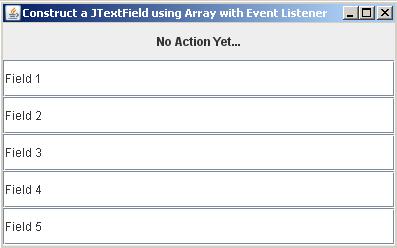
Construct a JTextField using Array with Event Listener

Output:
Code:

/**

* File: arrayJTextField.java

* Tiltle: Construct a JTextField using Array with Event Listener

* Author: http://java-code-complete.blogspot.com

*/


//Java Core Package

import javax.swing.*;

//Java Extension Package

import java.awt.*;

import java.awt.event.*;


public class arrayJTextField extends JFrame {


//Initializing JTextField, JPanel, JLabel

private JTextField field[];

private JPanel panel;

private JLabel caption;


//Setting up GUI

public arrayJTextField() {


//Setting up the Title of the Window

super("Construct a JTextField using Array with Event Listener");


//Set Size of the Window (WIDTH, HEIGHT)

setSize(400,250);


//Exit Property of the Window

setDefaultCloseOperation(JFrame.EXIT_ON_CLOSE);


//Constructing JTextField with an array size of 5

field = new JTextField[5];


//Constructing JLabel which is used to display text if the action is successfully implemented.

caption = new JLabel("No Action Yet...");

caption.setHorizontalAlignment(SwingConstants.CENTER); //Align the JLabel to Center


//Constructing JPanel for group of JTextFields with a GridLayout of 6 rows and 1 column

panel = new JPanel();

panel.setLayout(new GridLayout(6,1)); //Set JPanel's Layout

panel.add(caption); //Adding the JLabel in the JPanel placing at the very top


//Constructing all 5 JTextFields with a size of 20 using "for loop"

for(int count=0; count<field.length; count++) {

field[count] = new JTextField("Field "+(count+1),20);

panel.add(field[count]);

}


//Setting up the container ready for the components to be added.

Container pane = getContentPane();

setContentPane(pane);


//Implemeting Even-Listener on JTextField's reference name "field[0]" using ActionListener

field[0].addActionListener(

new ActionListener() {


//Handle JTextField event if Enter key is pressed

public void actionPerformed(ActionEvent event) {


/**Display this message using JLabel if the action

is Successfully Implemented using the method setText()

*/

caption.setText("Field 1 Event Listener Successfully Implemented");

}

}

);


//Implemeting Even-Listener on JTextField's reference name "field[1]" using ActionListener

field[1].addActionListener(

new ActionListener() {


//Handle JTextField event if Enter key is pressed

public void actionPerformed(ActionEvent event) {


/**Display this message using JLabel if the action

is Successfully Implemented using the method setText()

*/

caption.setText("Field 2 Event Listener Successfully Implemented");

}

}

);


//Implemeting Even-Listener on JTextField's reference name "field[2]" using ActionListener

field[2].addActionListener(

new ActionListener() {


//Handle JTextField event if Enter key is pressed

public void actionPerformed(ActionEvent event) {


/**Display this message using JLabel if the action

is Successfully Implemented using the method setText()

*/

caption.setText("Field 3 Event Listener Successfully Implemented");

}

}

);


//Implemeting Even-Listener on JTextField's reference name "field[3]" using ActionListener

field[3].addActionListener(

new ActionListener() {


//Handle JTextField event if Enter key is pressed

public void actionPerformed(ActionEvent event) {


/**Display this message using JLabel if the action

is Successfully Implemented using the method setText()

*/

caption.setText("Field 4 Event Listener Successfully Implemented");

}

}

);


//Implemeting Even-Listener on JTextField's reference name "field[4]" using ActionListener

field[4].addActionListener(

new ActionListener() {


//Handle JTextField event if Enter key is pressed

public void actionPerformed(ActionEvent event) {


/**Display this message using JLabel if the action

is Successfully Implemented using the method setText()

*/

caption.setText("Field 5 Event Listener Successfully Implemented");

}

}

);


//Adding the JPanel to the container

pane.add(panel);


/**Set all the Components Visible.

* If it is set to "false", the components in the container will not be visible.

*/

setVisible(true);

}


//Main Method

public static void main (String[] args) {

arrayJTextField pjtf = new arrayJTextField();

}

}


Important Part of the Program:

//Constructing JTextField with an array size of 5

JTextField field = new JTextField[5];


//Constructing JPanel for group of JTextFields with a GridLayout of 6 rows and 1 column

JPanel panel = new JPanel();

panel.setLayout(new GridLayout(6,1)); //Set JPanel's Layout

panel.add(caption); //Adding the JLabel in the JPanel placing at the very top


//Constructing all 5 JTextFields with a size of 20 using "for loop"

for(int count=0; count<field.length; count++) {

field[count] = new JTextField("Field "+(count+1),20);

panel.add(field[count]);

}


//Implemeting Even-Listener on JTextField's reference name "field[0]" using ActionListener

field[0].addActionListener(

new ActionListener() {


//Handle JTextField event if Enter key is pressed

public void actionPerformed(ActionEvent event) {


/**Display this message using JLabel if the action

is Successfully Implemented using the method setText()

*/

caption.setText("Field 1 Event Listener Successfully Implemented");

}

}

);


//Implemeting Even-Listener on JTextField's reference name "field[1]" using ActionListener

field[1].addActionListener(

new ActionListener() {


//Handle JTextField event if Enter key is pressed

public void actionPerformed(ActionEvent event) {


/**Display this message using JLabel if the action

is Successfully Implemented using the method setText()

*/

caption.setText("Field 2 Event Listener Successfully Implemented");

}

}

);


//Implemeting Even-Listener on JTextField's reference name "field[2]" using ActionListener

field[2].addActionListener(

new ActionListener() {


//Handle JTextField event if Enter key is pressed

public void actionPerformed(ActionEvent event) {


/**Display this message using JLabel if the action

is Successfully Implemented using the method setText()

*/

caption.setText("Field 3 Event Listener Successfully Implemented");

}

}

);


//Implemeting Even-Listener on JTextField's reference name "field[3]" using ActionListener

field[3].addActionListener(

new ActionListener() {


//Handle JTextField event if Enter key is pressed

public void actionPerformed(ActionEvent event) {


/**Display this message using JLabel if the action

is Successfully Implemented using the method setText()

*/

caption.setText("Field 4 Event Listener Successfully Implemented");

}

}

);


//Implemeting Even-Listener on JTextField's reference name "field[4]" using ActionListener

field[4].addActionListener(

new ActionListener() {


//Handle JTextField event if Enter key is pressed

public void actionPerformed(ActionEvent event) {


/**Display this message using JLabel if the action

is Successfully Implemented using the method setText()

*/

caption.setText("Field 5 Event Listener Successfully Implemented");

}

}

);


//Adding the JPanel to the container

pane.add(panel);

Thursday, August 4, 2011

Adding ToolTipText on JTextField

Output:


Code:

/**

* File: jtextfieldToolTipText.java

* Tiltle: Adding ToolTipText on JTextField

* Author: http://java-code-complete.blogspot.com

*/


//Java Core Package

import javax.swing.*;

//Java Extension Package

import java.awt.*;


public class jtextfieldToolTipText extends JFrame {


//Initializing JTextField

private JTextField field;


//Setting up GUI

public jtextfieldToolTipText() {


//Setting up the Title of the Window

super("Adding ToolTipText on JTextField");


//Set Size of the Window (WIDTH, HEIGHT)

setSize(300,100);


//Exit Property of the Window

setDefaultCloseOperation(JFrame.EXIT_ON_CLOSE);


//Constructing JTextField with a size of 20

field = new JTextField(20);


//Setting or Adding JTextField ToolTipText

field.setToolTipText("JTextField ToolTipText. Enter Text Here..");


//Setting up the container ready for the components to be added.

Container pane = getContentPane();

setContentPane(pane);


//Adding the JTextField component to the container

pane.add(field, BorderLayout.NORTH);


/**Set all the Components Visible.

* If it is set to "false", the components in the container will not be visible.

*/

setVisible(true);

}


//Main Method

public static void main (String[] args) {

jtextfieldToolTipText jtfttt = new jtextfieldToolTipText();

}

}


Important Part of the Program:

//Constructing JTextField with a size of 20 

JTextField field = new JTextField(20);


//Setting or Adding JTextField ToolTipText

field.setToolTipText("JTextField ToolTipText. Enter Text Here..");

Friday, July 29, 2011

Copy Text from JTextField to JTextField

Output:
Code:

/**

* File: textFieldToTextField.java

* Tiltle: Copy Text from JTextField to JTextField

* Author: http://java-code-complete.blogspot.com

*/


//Java Core Package

import javax.swing.*;

//Java Extension Package

import java.awt.*;

import java.awt.event.*;


public class textFieldToTextField extends JFrame {


//Initializing JTextField

private JTextField field1, field2;


//Setting up GUI

public textFieldToTextField() {


//Setting up the Title of the Window

super("Copy Text from JTextField to JTextField");


//Set Size of the Window (WIDTH, HEIGHT)

setSize(320,100);


//Exit Property of the Window

setDefaultCloseOperation(JFrame.EXIT_ON_CLOSE);


//Constructing JTextField with a size of 20

field1 = new JTextField(20);

field2 = new JTextField(20);


//Setting up the container ready for the components to be added.

Container pane = getContentPane();

setContentPane(pane);


//Setting up the container layout

FlowLayout flow = new FlowLayout(FlowLayout.LEFT);

pane.setLayout(flow);


//Implemeting Even-Listener on JTextField's reference name "field1" using ActionListener

field1.addActionListener(

new ActionListener() {


//Handle JTextField event if Enter key is pressed

public void actionPerformed(ActionEvent event) {


//Copy Text from JTextField field1 to field2

field2.setText(field1.getText());


//The JTextField will be empty after Enter key is pressed ready for the next input.

field1.setText(null);

}

}

);


//Implemeting Even-Listener on JTextField's reference name "field2" using ActionListener

field2.addActionListener(

new ActionListener() {


//Handle JTextField event if Enter key is pressed

public void actionPerformed(ActionEvent event) {


//Copy Text from JTextField field2 to field1

field1.setText(field2.getText());


//The JTextField will be empty after Enter key is pressed ready for the next input.

field2.setText(null);

}

}

);


//Adding the JTextField components to the container

pane.add(field1);

pane.add(field2);


/**Set all the Components Visible.

* If it is set to "false", the components in the container will not be visible.

*/

setVisible(true);

}


//Main Method

public static void main (String[] args) {

textFieldToTextField jtff = new textFieldToTextField();

}

}


Important Part of the Program:

field1.addActionListener(

new ActionListener() {


//Handle JTextField event if Enter key is pressed

public void actionPerformed(ActionEvent event) {


//Copy Text from JTextField field1 to field2

field2.setText(field1.getText());


//The JTextField will be empty after Enter key is pressed ready for the next input.

field1.setText(null);

}

}

);


//Implemeting Even-Listener on JTextField's reference name "field2" using ActionListener

field2.addActionListener(

new ActionListener() {


//Handle JTextField event if Enter key is pressed

public void actionPerformed(ActionEvent event) {


//Copy Text from JTextField field2 to field1

field1.setText(field2.getText());


//The JTextField will be empty after Enter key is pressed ready for the next input.

field2.setText(null);

}

}

);

Copy Text from JTextField to JTextArea

Output:
Code:

/**

* File: textFieldToTextArea.java

* Tiltle: Copy Text from JTextField to JTextArea

* Author: http://java-code-complete.blogspot.com

*/


//Java Core Package

import javax.swing.*;

//Java Extension Package

import java.awt.*;

import java.awt.event.*;


public class textFieldToTextArea extends JFrame {


//Initializing JTextField and JTextArea

private JTextField field;

private JTextArea area;


//Setting up GUI

public textFieldToTextArea() {


//Setting up the Title of the Window

super("Copy Text from JTextField to JTextArea");


//Set Size of the Window (WIDTH, HEIGHT)

setSize(310,225);


//Exit Property of the Window

setDefaultCloseOperation(JFrame.EXIT_ON_CLOSE);


//Constructing JTextField with a size of 26

field = new JTextField(26);


//Constructing JTextArea with a LENGTH:10 WIDTH:26

area = new JTextArea(10,26);


//Setting up the container ready for the components to be added.

Container pane = getContentPane();

setContentPane(pane);


//Setting up the container layout

FlowLayout flow = new FlowLayout(FlowLayout.CENTER);

pane.setLayout(flow);


//Implemeting Even-Listener on JTextField's reference name "field" using ActionListener

field.addActionListener(

new ActionListener() {


//Handle JTextField event if Enter key is pressed

public void actionPerformed(ActionEvent event) {


//Copy Text from JTextField to JTextArea

area.setText(field.getText());


//The JTextField will be empty after Enter key is pressed ready for the next input.

field.setText(null);

}

}

);


//Adding the JTextField and JTextArea to the container

pane.add(field);

pane.add(area);


/**Set all the Components Visible.

* If it is set to "false", the components in the container will not be visible.

*/

setVisible(true);

}


//Main Method

public static void main (String[] args) {

textFieldToTextArea jtta = new textFieldToTextArea();

}

}


Important Part of the Program:

//Implemeting Even-Listener on JTextField's reference name "field" using ActionListener

field.addActionListener(

new ActionListener() {


//Handle JTextField event if Enter key is pressed

public void actionPerformed(ActionEvent event) {


//Copy Text from JTextField to JTextArea

area.setText(field.getText());


//The JTextField will be empty after Enter key is pressed ready for the next input.

field.setText(null);

}

}

);

Add Items on JList using JTextField

Output:
Code:

/**

* File: jtextfieldToJList.java

* Tiltle: Add Items on JList using JTextField

* Author: http://java-code-complete.blogspot.com

*/


//Java Extension Packages

import javax.swing.*;

//Java Core Packages

import java.awt.*;

import java.awt.event.*;


public class jtextfieldToJList extends JFrame {


//Initializing JTextField, JList, and DefaultListModel class

private DefaultListModel model;

private JList list;

private JTextField input;


//Setting up GUI

public jtextfieldToJList() {


//Setting up the Title of the Window

super("Add Item on JList using JTextField");


//Set Size of the Window (WIDTH, HEIGHT)

setSize(280,170);


//Exit Property of the Window

setDefaultCloseOperation(JFrame.EXIT_ON_CLOSE);


//Constructing JTextField, JList, and DefaultListModel

model = new DefaultListModel();

input = new JTextField("Type your Inputs Here and Press Enter");

list = new JList(model);


//Setting JList Properties

list.setVisibleRowCount(8); //Number of Itmes to be displayed. If greater than 8, Vertical ScrollBar will be displayed.

list.setFixedCellHeight(15); //Fix width of the JList

list.setSelectionMode(ListSelectionModel.MULTIPLE_INTERVAL_SELECTION);


//Setting up the container ready for the components to be added.

Container pane = getContentPane();

setContentPane(pane);


//Implemeting Even-Listener on JTextField's reference name "input" using ActionListener

input.addActionListener(

new ActionListener() {


//Handle JTextField event if Enter key is pressed

public void actionPerformed(ActionEvent event) {


//Store the input from JTextField to the variable "message"

String message = "The input <"+input.getText()+"> is Successfully Added!";


//Adding items or elements from JTextField to JList

model.addElement(input.getText());


//Display the input from JTextField to JOptionPane using the variable "message"

JOptionPane.showMessageDialog(null, message,"Successfully Added!",JOptionPane.INFORMATION_MESSAGE);


//The JTextField will be empty after JOptionPane is closed ready for the next input.

input.setText(null);

}

}

);


//Adding JTextField in the container with a BorderLayout of NORTH

pane.add(input,BorderLayout.NORTH);


//Adding the JList in the container with a component JScrollPane that's automatically creates Vertical and Horizontal Scroll Bar

//if the items or elements are greater than the specified "VisibleRowCount" in line 38.

pane.add(new JScrollPane(list),BorderLayout.SOUTH);


/**Set all the Components Visible.

* If it is set to "false", the components in the container will not be visible.

*/

setVisible(true);

}


//Main Method

public static void main(String[] args) {

jtextfieldToJList aijl = new jtextfieldToJList();

}

}


Important Part of the Program:

//Implemeting Even-Listener on JTextField's reference name "input" using ActionListener

input.addActionListener(

new ActionListener() {


//Handle JTextField event if Enter key is pressed

public void actionPerformed(ActionEvent event) {


//Store the input from JTextField to the variable "message"

String message = "The input <"+input.getText()+"> is Successfully Added!";


//Adding items or elements from JTextField to JList

model.addElement(input.getText());


//Display the input from JTextField to JOptionPane using the variable "message"

JOptionPane.showMessageDialog(null, message,"Successfully Added!",JOptionPane.INFORMATION_MESSAGE);


//The JTextField will be empty after JOptionPane is closed ready for the next input.

input.setText(null);

}

}

);

Set JRadioButton Label using JTextField

Program Description:

The program below is a simple Java Code that lets you customize you own JRadioButton label using JTextField so in this way, your JRadioButton label is changeable. It gives you the capability to change its label easily without going in to codes.

Output:
Code:

/**

* File: changeJRadioButtonLabel.java

* Tiltle: Set JRadioButton Label using JTextField

* Author: http://java-code-complete.blogspot.com

*/


//Java Core Package

import javax.swing.*;

//Java Extension Package

import java.awt.*;

import java.awt.event.*;


public class changeJRadioButtonLabel extends JFrame {


//Initializing JTextField and JRadioButton

private JTextField field;

private JRadioButton button;


//Setting up GUI

public changeJRadioButtonLabel() {


//Setting up the Title of the Window

super("Set JRadioButton Label using JTextField");


//Set Size of the Window (WIDTH, HEIGHT)

setSize(310,90);


//Exit Property of the Window

setDefaultCloseOperation(JFrame.EXIT_ON_CLOSE);


//Constructing JTextField and JRadioButton

field = new JTextField("Enter Text Here...",25);

button = new JRadioButton("Default Label",true);


//Setting up the container ready for the components to be added.

Container pane = getContentPane();

setContentPane(pane);


//Setting up the container layout

FlowLayout flow = new FlowLayout(FlowLayout.CENTER);

pane.setLayout(flow);


//Implemeting Even-Listener on JTextField's reference name "field" using ActionListener

field.addActionListener(

new ActionListener() {


//Handle JTextField event if Enter key is pressed

public void actionPerformed(ActionEvent event) {


//Setting JRadioButton label using JTextField

button.setText(field.getText());


//The JTextField will be empty after Enter key is pressed ready for the next input.

field.setText(null);

}

}

);


//Adding the JTextField and JRadioButton components to the container

pane.add(field);

pane.add(button);


/**Set all the Components Visible.

* If it is set to "false", the components in the container will not be visible.

*/

setVisible(true);

}


//Main Method

public static void main (String[] args) {

changeJRadioButtonLabel jtrl = new changeJRadioButtonLabel();

}

}


Important Part of the Program:

//Implemeting Even-Listener on JTextField's reference name "field" using ActionListener

field.addActionListener(

new ActionListener() {


//Handle JTextField event if Enter key is pressed

public void actionPerformed(ActionEvent event) {


//Setting JRadioButton label using JTextField

button.setText(field.getText());


//The JTextField will be empty after Enter key is pressed ready for the next input.

field.setText(null);

}

}

);

Set JCheckBox Label using JTextField

Output:
Code:

/**

* File: changeJCheckBoxLabel.java

* Tiltle: Set JCheckBox Label using JTextField

* Author: http://java-code-complete.blogspot.com

*/


//Java Core Package

import javax.swing.*;

//Java Extension Package

import java.awt.*;

import java.awt.event.*;


public class changeJCheckBoxLabel extends JFrame {


//Initializing JTextField and JCheckBox

private JTextField field;

private JCheckBox box;


//Setting up GUI

public changeJCheckBoxLabel() {


//Setting up the Title of the Window

super("Set JCheckBox Label using JTextField");


//Set Size of the Window (WIDTH, HEIGHT)

setSize(310,90);


//Exit Property of the Window

setDefaultCloseOperation(JFrame.EXIT_ON_CLOSE);


//Constructing JTextField and JCheckBox

field = new JTextField("Enter Text Here...",25);

box = new JCheckBox("Default Label",true);


//Setting up the container ready for the components to be added.

Container pane = getContentPane();

setContentPane(pane);


//Setting up the container layout

FlowLayout flow = new FlowLayout(FlowLayout.CENTER);

pane.setLayout(flow);


//Implemeting Even-Listener on JTextField's reference name "field" using ActionListener

field.addActionListener(

new ActionListener() {


//Handle JTextField event if Enter key is pressed

public void actionPerformed(ActionEvent event) {


//Setting JCheckBox label using JTextField

box.setText(field.getText());


//The JTextField will be empty after Enter key is pressed ready for the next input.

field.setText(null);

}

}

);


//Adding the JTextField and JCheckBox components to the container

pane.add(field);

pane.add(box);


/**Set all the Components Visible.

* If it is set to "false", the components in the container will not be visible.

*/

setVisible(true);

}


//Main Method

public static void main (String[] args) {

changeJCheckBoxLabel cjcb = new changeJCheckBoxLabel();

}

}


Important Part of the Program:

//Implemeting Even-Listener on JTextField's reference name "field" using ActionListener

field.addActionListener(

new ActionListener() {


//Handle JTextField event if Enter key is pressed

public void actionPerformed(ActionEvent event) {


//Setting JCheckBox label using JTextField

box.setText(field.getText());


//The JTextField will be empty after Enter key is pressed ready for the next input.

field.setText(null);

}

}

);